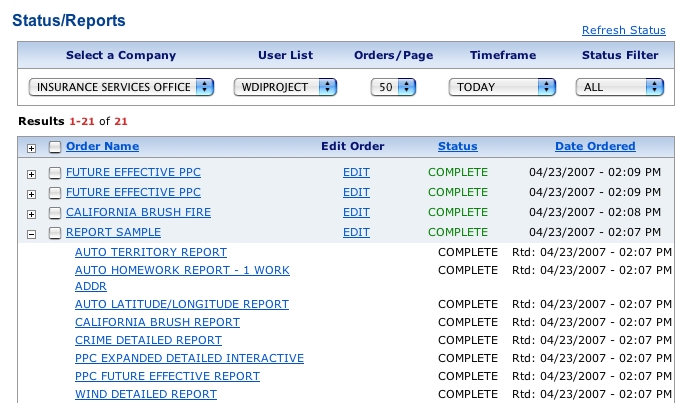
Once you order reports and ISO Passport® processes them, you will find your reports under the Status/Reports screen. This screen provides the order name of each report as you entered it on the Input screen, the report's status, and the date you ordered it. To view the screen, select Report View/Status from the left navigation bar on any ISO Passport page.
You can modify the information provided on this screen to fit your specific needs. You can filter the list to limit the number of items presented, and you can sort the list of orders by Order Name, Status, or Date Ordered. Just click on the column title to sort.
You can order reports individually by service, or you can order multiple services simultaneously under one report (illustrated above in the "Report Sample" report request). You can view reports by clicking an order name in the report list. If you order more than one service under the same name, a single report appears listing all of the individual services requested under the order name.
The ISO Passport system generates many reports instantaneously and shows all completed requests in green text. However, if the Status column does not show COMPLETE in green text, you can still view the status and content of each report individually. Simply click the plus symbol (+) at the beginning of the report row to display the order details. You'll find each individual report listed with its status. Click the individual completed services for corresponding reports.
If the Status column lists COMPLETE in red text, the system may not have processed one or more of the reports you ordered. Click the plus symbol (+) at the beginning of the row and then each report listed to see an error message explaining why the report failed.
|
|
If you want to edit an order, click Edit Order, and change the reports requested and/or the risk address entered. This option enables you to order similar reports without having to re-enter all of the required data. Any completed reports are billed separately. |
If your report fails because you placed the order during scheduled maintenance, you will have to reorder after the maintenance period ends. This requirement applies to all ISO Passport reports.
If your report fails because the data source for the report is having an unscheduled outage, you may or may not have to reorder when the outage ends. Here are the details:
For LOCATION® reports, you do not need to reorder. ISO Passport will automatically return your reports after the outage ends.
For most other reports, you do need to reorder after the outage ends.
For certain reports, you have the option to sign up for stand-in processing (also called retry processing). When you sign up, you will specify a time-out period — that is, the length of time you want the system to continue trying to order your report. During an outage, ISO Passport will automatically retry your request until the data source becomes available or until the end of your specified time-out period, whichever comes first. Stand-in processing is available at no extra charge, but you must sign up before it takes effect. Contact the ISO Customer Support Center at 1-800-888-4476 for more details and for a list of ISO Passport products that offer stand-in processing.
To filter the report list on the Status screen:
Select the company for which you want to display reports. Generally, this field will already be selected based on your default settings.
Do any of the following to filter the information displayed:
Select the number of orders to show on a single screen from the Orders Per Page list.
Select the timeframe you want to view from the Timeframe list. Options range from Today to 90 days prior.
Select a Status Filter. You may choose to view All reports or limit the output to view only Active, Completed, or Failed reports.
Select the checkbox next to one or more order names and then click View Reports to view a screen containing only the selected orders.
